Undervolting the Steam Deck
Undervolting the Steam Deck can make it run more efficiently and extend its battery life. Here’s the setup I used.
steps
- power off the Steam Deck
- hold the volume up and power buttons until you hear a chime
- you’ll now be in the BIOS
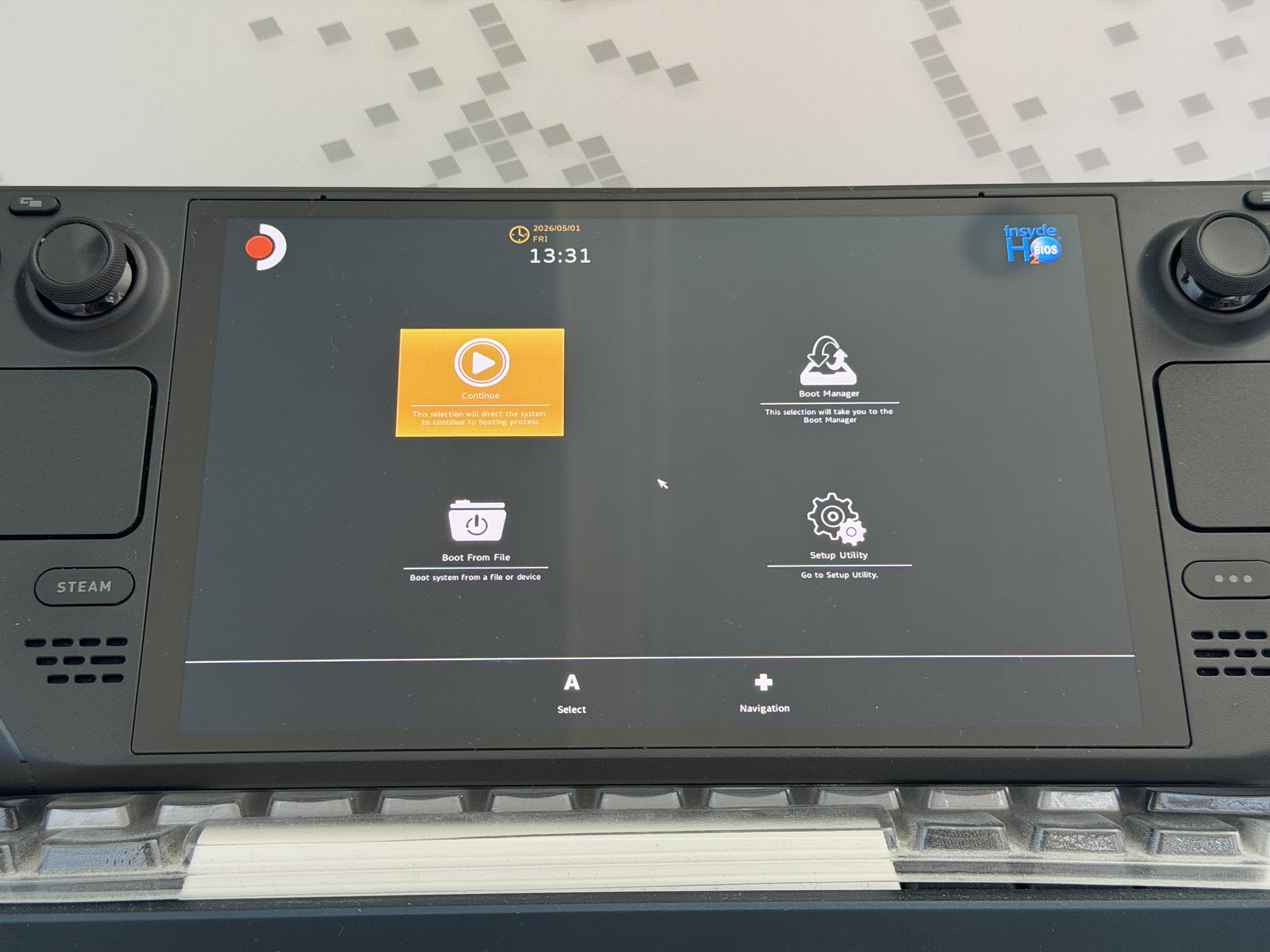
- from here go to the menu item titled “Setup Utility”
- once there, navigate to the “Advanced Settings” section
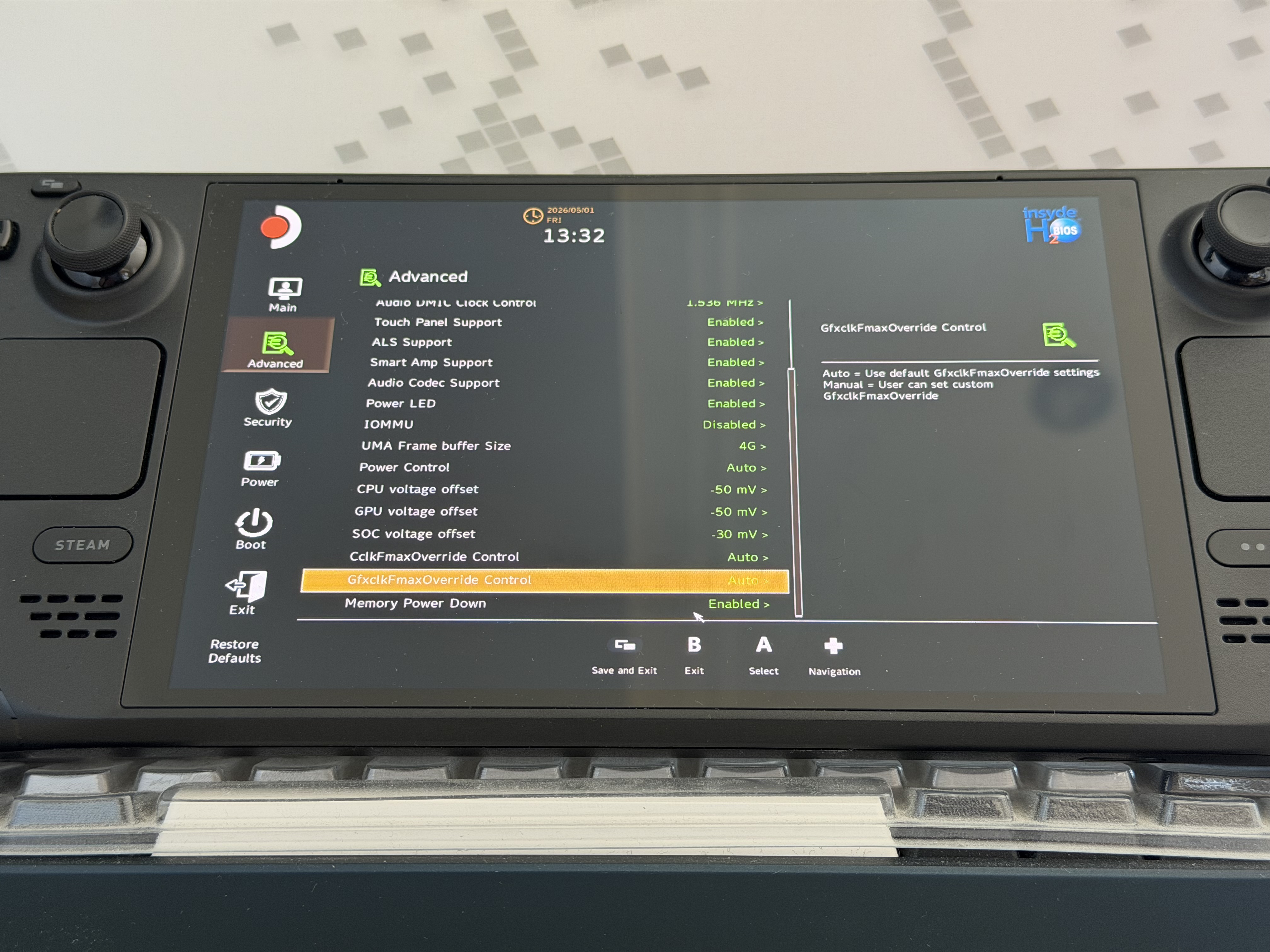
- here you can choose voltages offset from 0mV to -50mV for the CPU, GPU and SoC
- I decided to use -50mV offset on both the CPU and the GPU and kept the SoC at -30mV
That’s it, happy gaming!